Support Center
FAQ
Support Center
Forgot password / Retrieve password via email
If your account is bound to an email address, even if you forget your password, you can quickly reset it through email verification: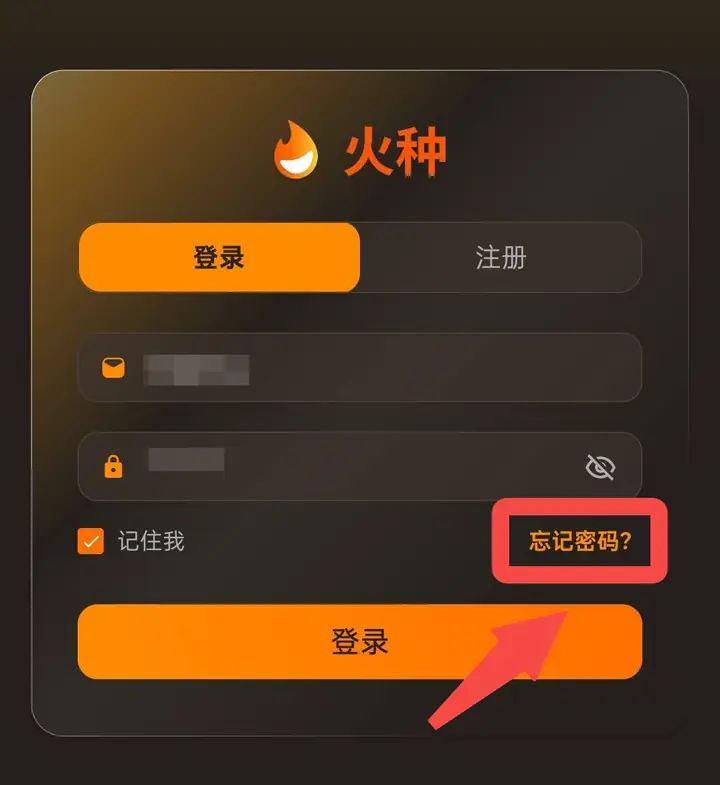 Open the login page and click the "Forgot your password?" link on the right below the password input box.
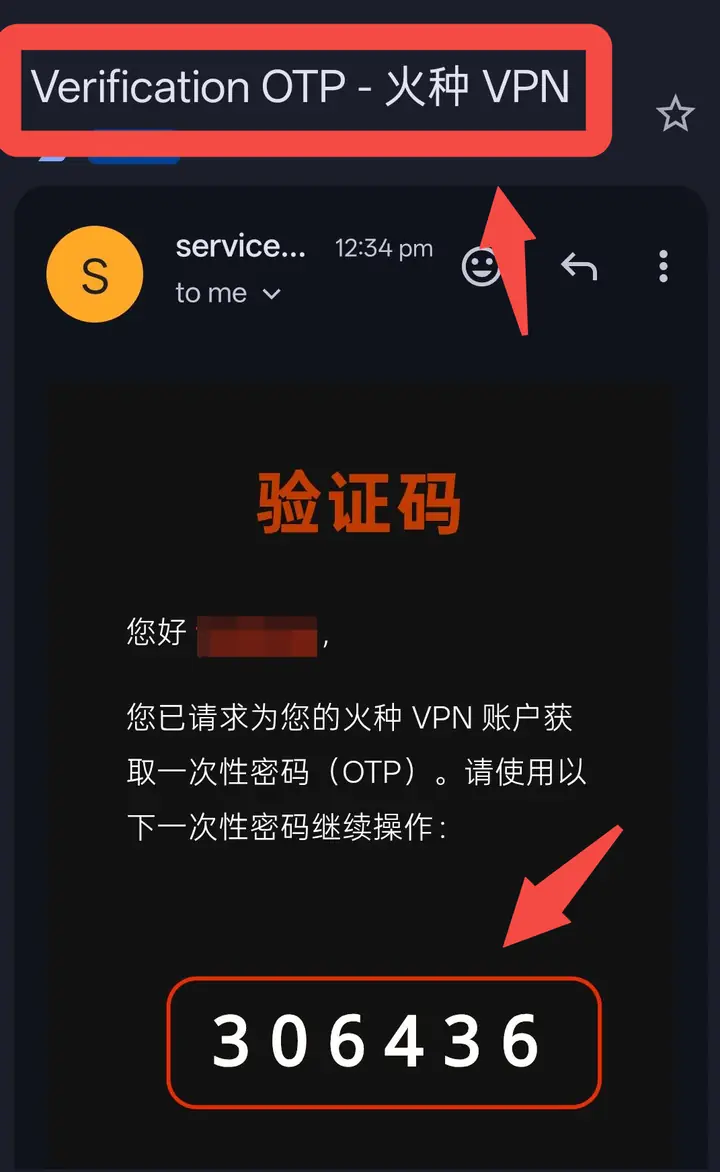 Go to your inbox to check the email. The email title is "Verification OTP - 火种VPN". A 6-digit verification code will appear in the email.
💡If you don't receive the verification code: Please check your emailSpam/Trash folder, verification emails are sometimes misidentified as spam. If you still haven't received it, you can return to the App page and click "Didn't receive the verification code? Reset password now" to resend it.
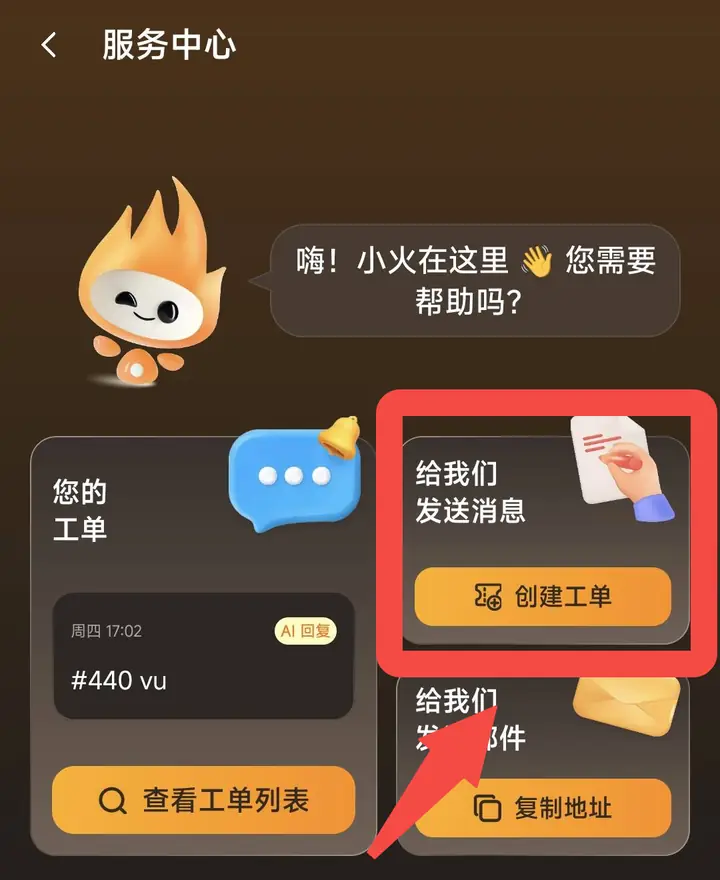
After filling in, click the "Reset Password" button to complete the password retrieval.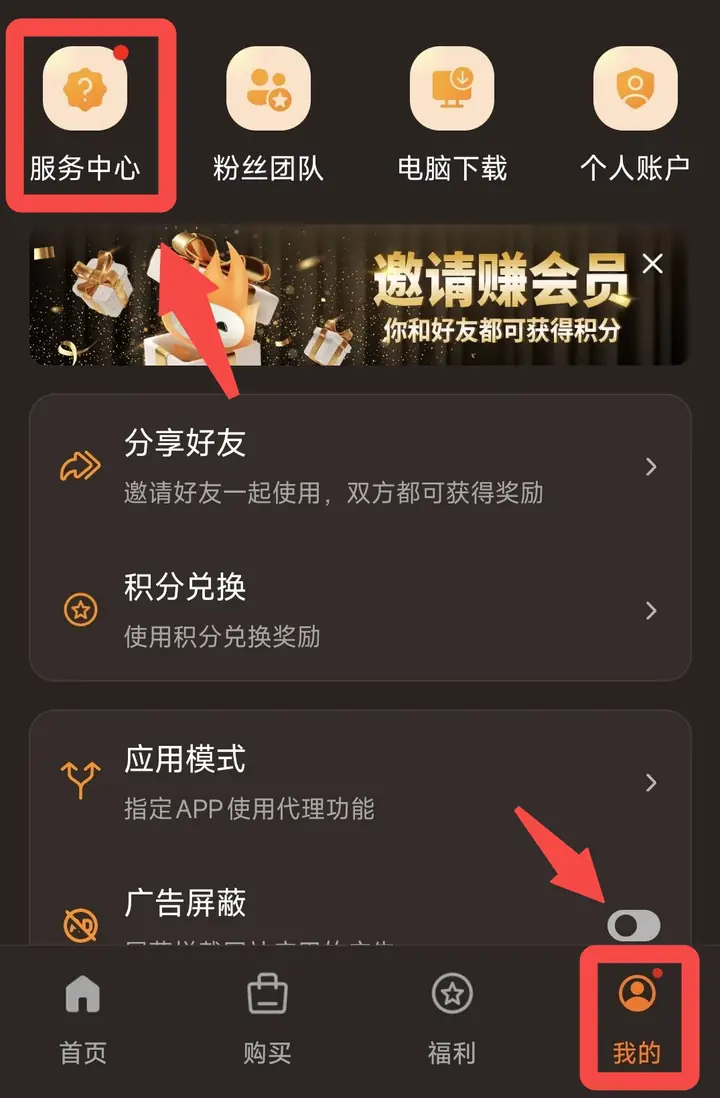 Submit a work order: Go to "My" → "Service Center" to submit a work order and explain the situation so that customer service can verify your identity and assist in retrieving your password.
Situation 1: The account has been bound to an email address
Step 1: Go to the login page and find the entrance
Open the login page and click the "Forgot your password?" link on the right below the password input box.Step 2: Enter the binding email address
After entering the "Reset Password" page, enter the email address bound to your account, and then click the "Apply OTP" button. The system will send a one-time verification code (OTP) to this email address.Step 3: Check the verification code email
Go to your inbox to check the email. The email title is "Verification OTP - 火种VPN". A 6-digit verification code will appear in the email.💡If you don't receive the verification code: Please check your emailSpam/Trash folder, verification emails are sometimes misidentified as spam. If you still haven't received it, you can return to the App page and click "Didn't receive the verification code? Reset password now" to resend it.
Step 4: Enter the verification code
Return to the App and fill in the 6-digit verification code you just received on the "Enter Verification Code" page.Step 5: Set a new password
After passing the verification, you will enter the "Create New Password" page and only need to:- Enter "new password"
- Enter the same new password again in the "Confirm Password" field
After filling in, click the "Reset Password" button to complete the password retrieval.
⚠️ Important reminder
- The verification code has a certain validity period, please check and use it as soon as possible. If it times out, you may need to apply again.
- Please be sure to check your spam folder to avoid mistakenly thinking that the email was "not received" due to being blocked.
- After the new password is successfully set, it is recommended to keep it properly and use the new password to log in again on other logged-in devices.
Situation 2: The account is not bound to an email address
If your accountNo email bound, you will not be able to reset your password by yourself through the "Forgot Password" function. Please contact customer service through the following methods for assistance:Submit a work order: Go to "My" → "Service Center" to submit a work order and explain the situation so that customer service can verify your identity and assist in retrieving your password.Situation 3: Even the account information is forgotten (no verification information can be provided)
If you haveCompletely forgetting account related information(such as registered user name/email, etc.), and customer service cannot verify your identity:- If you have never purchased a membership: It is recommended to directlyRegister a new accountIt can be used normally.
- If you have purchased a membership: Please submit a work order to contact customer service, and provide purchase proof (such as order number, payment record, payment account information, etc.) as much as possible to assist customer service in verifying your identity and retrieving your account, so as not to affect the membership rights you have purchased.