Support Center
FAQ
Support Center
App mode (bypass VPN functionality)
The "Application Mode" function allows you to specify certain apps not to go through the VPN tunnel, and other apps to connect normally through the VPN. The setup steps are as follows: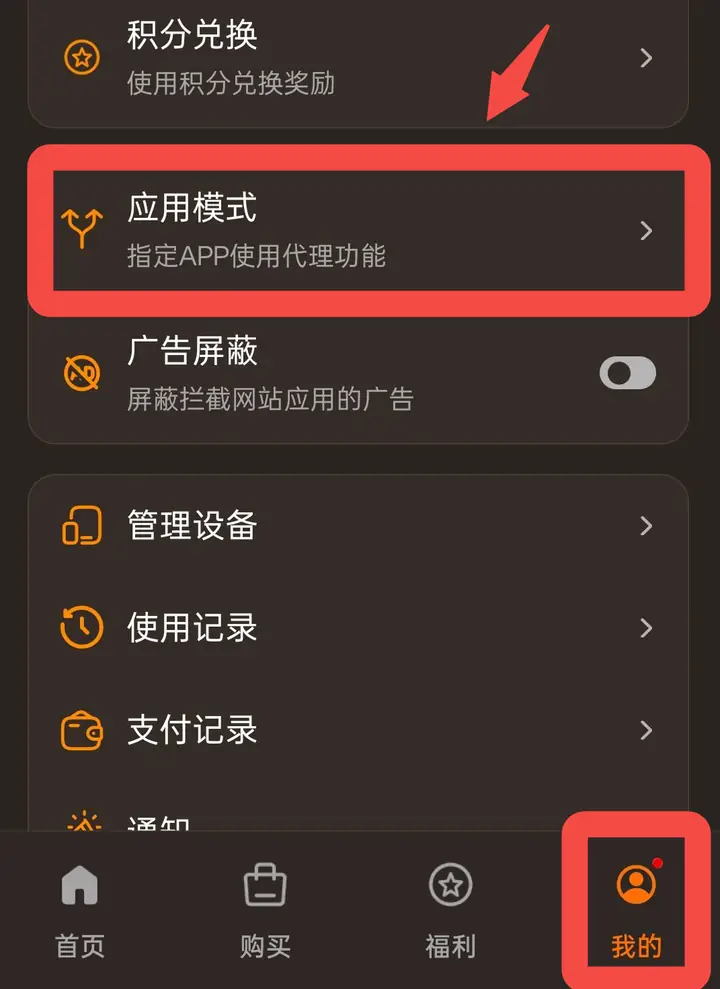 Click "My" on the bottom navigation bar, find the "Application Mode" option on the page and click to enter.
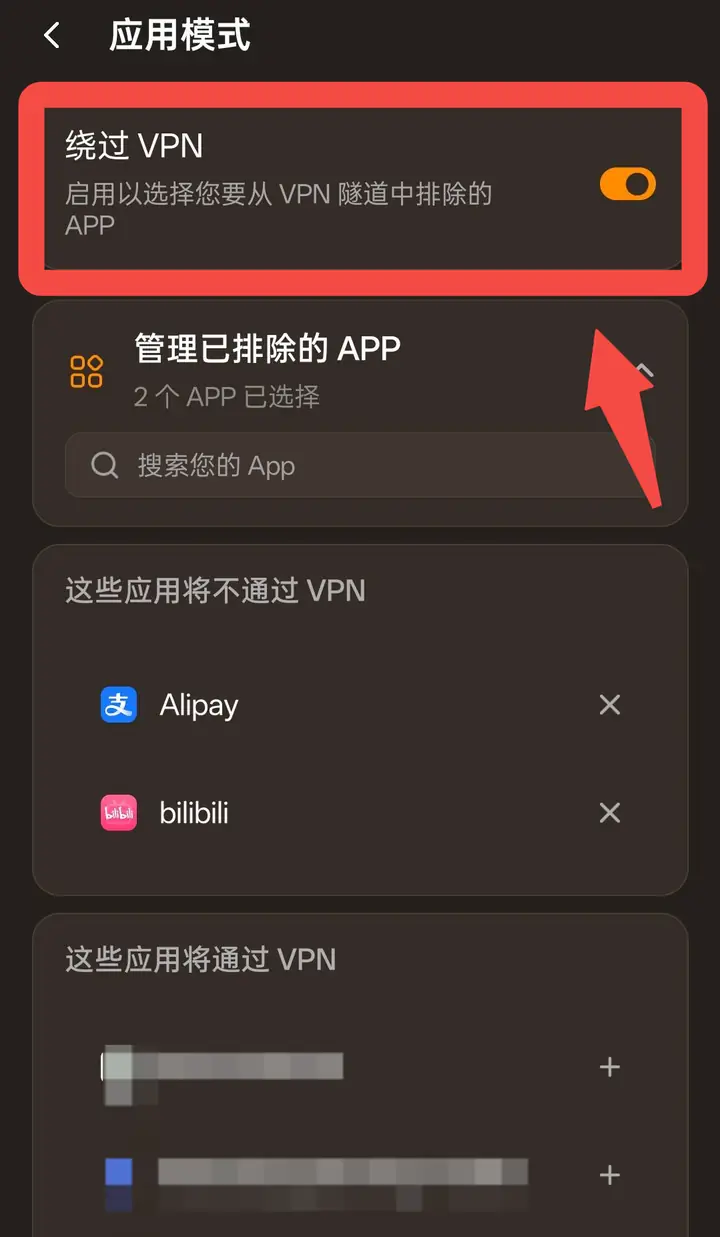 【Android/Windows/Linux】
Click "Manage Excluded Apps" to expand the list, and you can find the App you want to set through the search box "Search your App". Once selected, the app will appear in the "These apps will not go through VPN" list; unselected apps will remain in the "These apps will go through VPN" list.
If you want to cancel the exclusion settings of an app, click the "✕" on the right side of the app to remove it from the exclusion list.
【iOS/macOS】
Due to system limitations, App cannot be selected, and there is no "Manage Excluded Apps" on the page. Please click "Manage Excluded Websites" and add the domain names of the websites you want to connect directly. These websites will no longer be accessible through VPN. If you need to cancel, just delete the corresponding website from the list.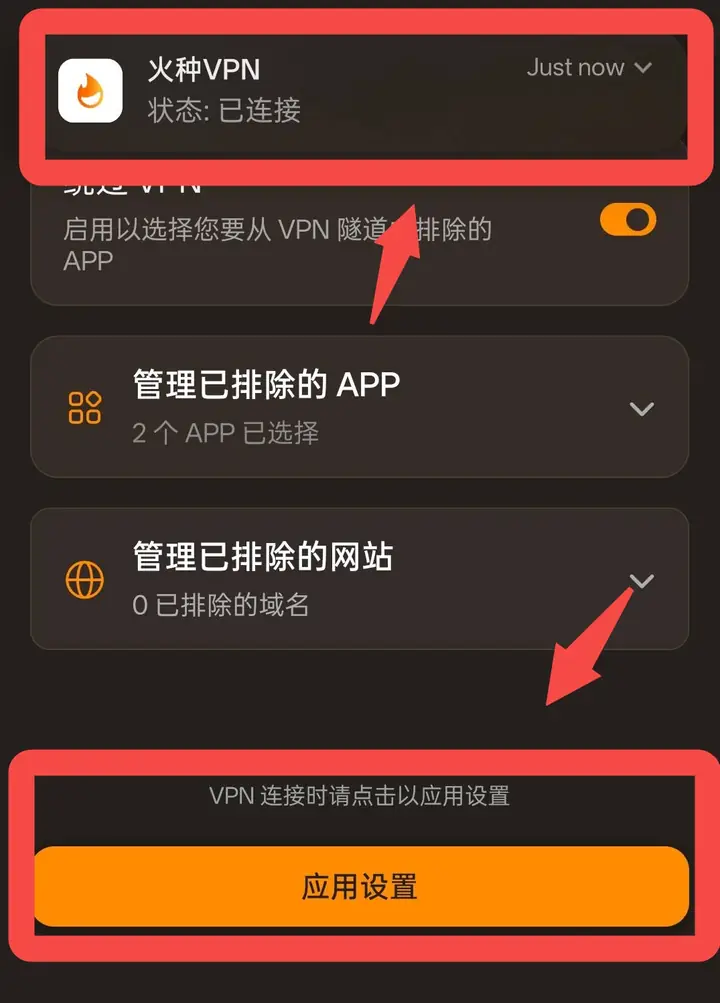
📌 Scope of application:
- Android: Can exclude both apps and websites.
- iOS / macOS: Excluding apps is not supported, only excluding websites (domain names) is supported.
Step 1: Enter the application mode page
Click "My" on the bottom navigation bar, find the "Application Mode" option on the page and click to enter.Step 2: Turn on “Bypass VPN”
On the "Application Mode" page, turn on the "Bypass VPN" switch. Once enabled, you can select apps to be excluded from the VPN tunnel.Step 3: Select the apps or websites you want to exclude
【Android/Windows/Linux】Click "Manage Excluded Apps" to expand the list, and you can find the App you want to set through the search box "Search your App". Once selected, the app will appear in the "These apps will not go through VPN" list; unselected apps will remain in the "These apps will go through VPN" list.
If you want to cancel the exclusion settings of an app, click the "✕" on the right side of the app to remove it from the exclusion list.
【iOS/macOS】
Due to system limitations, App cannot be selected, and there is no "Manage Excluded Apps" on the page. Please click "Manage Excluded Websites" and add the domain names of the websites you want to connect directly. These websites will no longer be accessible through VPN. If you need to cancel, just delete the corresponding website from the list.
Step 4: Click "Apply Settings" to make the settings take effect
⚠️ Important reminder: Regarding the availability of the "App Settings" button
- Only clickable when the VPN server is connected: The "Apply Settings" button can only be clicked to take effect if you are currently connected to a VPN server. If the VPN is not connected at this time, the button will be gray and unclickable, and it will prompt "Settings will be automatically applied when the VPN is not connected" - that is to say, changes made while not connected will automatically take effect the next time the VPN is connected, without manual clicks.
- Clicking "App Settings" will briefly disconnect and reconnect.: When the VPN is connected, if you change the settings to exclude apps and click "App Settings", the server willAutomatically disconnect and reconnectonce for the new settings to take effect. There may be a brief network interruption during this period, which is normal. The settings will take effect after reconnection.