Gemini VPN: What to Watch With Your Google Account
Gemini signs in with your Google account and also turns up inside Gmail, Docs and other Google products. The same Gemini offers different features depending on country, language and account type. This page explains how HZVPN helps, and which differences a VPN cannot change.
Download HZVPN
What a VPN does for Gemini
Gemini's website and mobile app both connect to Google's servers. On a public network, the operator can see which services you use.
Where Google offers Gemini, HZVPN can encrypt that connection; whether a feature is available depends on Google's rules and your account settings.


Google watches where you sign in
Signing in to your Google account from a new location can bring a security alert or a check. Using one fixed HZVPN location cuts down on these.
Planning a trip with Gemini at the airport
On airport and hotel networks, HZVPN encrypts the connection between you and Gemini, so others on the same network cannot see which services you use.
Admins decide for company accounts
With a work or school Google account, whether Gemini is available is set by the admin. If it's switched off, a new IP won't change that; ask your admin.
Pick a location near you
In Malaysia, try Malaysia (4 servers); in Japan, try Japan (41). Staying close to where you are keeps your account's environment steadier.
Gemini and VPNs: three rules to know
Most differences in Gemini come from Google's rules and the account itself.
Regions and languages are Google's call
Google publishes the countries, regions and languages where Gemini is available, and some features are limited to certain regions or languages. Use Gemini where Google supports it and under its terms; HZVPN cannot change those rules.
New locations can trigger checks
A Google account signing in from a new location may need verification. Switching server locations often can make checks more frequent and, in bad cases, lead to temporary restrictions.
Age and account type matter
Gemini has different rules for users' age and account type (personal, work or school). See Google's Help Center for the details.
Using Gemini in different places
The website, mobile, Gemini inside Google products, and the developer API.

Website
Open Gemini in a browser. The HZVPN app on Windows and macOS encrypts browser traffic.

Mobile app
HZVPN runs on Android 9+ and iOS 13+. On some Android phones, Gemini can also act as the phone's assistant.

Inside Google products
Whether Gemini features show up in Gmail, Docs and other products depends on your account type and Google's rules, not on a VPN.

Developer API
Developers calling the Gemini API also need to follow Google's published regions and terms. HZVPN's Linux command-line client works on servers.
Get started in 3 steps

Sign up and download
Create an HZVPN account on our website, then download the app for Android, iOS, Windows, macOS or Linux.

Pick a server location
Choose one of 43 server locations in the app and tap connect. If it doesn't feel right, switch to another any time.

Open the app you want to use
Where Google offers Gemini, open it and check that chats work; if Google asks to verify your account, follow the prompts.
Why someone else has a Gemini feature you don't
Gemini features roll out in stages, and differences usually come from four things: country or region, language, account type (personal, work or school), and whether you subscribe to a paid plan.
Account type and subscription have nothing to do with your IP, and work or school accounts also depend on what the admin allows.
For regions and languages, go by Google's Help Center. Switching your IP to another region to try new features may not fit Google's terms and may trigger account checks; we don't recommend it.
What HZVPN is good for is protecting your connection on public networks and giving you another route when the line is poor.
HZVPN features that help with Gemini
We only list features HZVPN actually has today. If a feature isn't listed here, please don't assume it exists.
43 server locations, 265 servers
265 servers in 43 locations, so you can pick one close to where you actually are.

Switch locations any time, no limit
You can switch when needed, but for a stable Google account, stick to one location.
One account, several devices
Your phone, tablet and computer can all sign in with the same HZVPN account. Devices online at the same time: 3 on VIP, 5 on SVIP (the app shows the current limit).
Free servers once you sign up
Free routes are available once you sign up, so you can try them on public networks first.
Where the free servers are today
 United States
 Japan
 Hong Kong
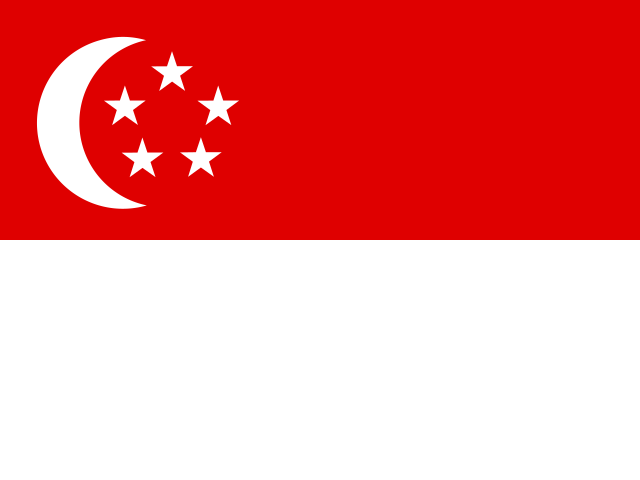 Singapore
 Germany
 Canada
 France
 Thailand
 United Kingdom

Frequently asked questions
Can a VPN give me Gemini features from another region?
We don't recommend trying. Which regions and languages get which features is up to Google; use Gemini where Google supports it and under its terms.
Why does Google ask me to verify when I sign in with HZVPN on?
Google watches for changes in sign-in location. Using one fixed location near you reduces checks.
My work account can't use Gemini. Will a new IP help?
No. Whether work and school accounts can use Gemini is set by the admin; contact them.
With a VPN on, can Google no longer see my Gemini chats?
No. A VPN only encrypts the connection between you and the HZVPN server; your chats still go to Google for processing.
Does Gemini on my phone work through HZVPN?
Yes. Install and connect HZVPN on Android 9+ or iOS 13+, and the Gemini app's traffic goes through the encrypted tunnel.
Ready when you are
Sign up for an HZVPN account to use the free servers. Upgrade later if you need more server locations or more devices online at once.
Server numbers come from our server list (43 locations, 265 servers). They change with maintenance; the app always shows the current list.