Support Center
Mac Client
Support Center
How to enable network extensions for MacOs users
- When you open HZVPN and your system has not granted extension and VPN permissions, the system will pop up a prompt window as shown below. Be sure to click"allow"as well as "good”. Normally our application will help you open"Login items and extensions"page, please keep it and look atStep 4。

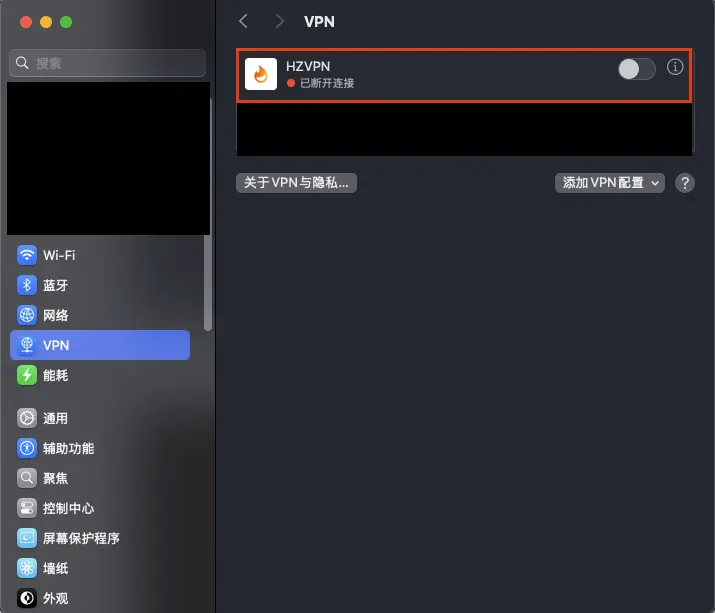
- After you allow VPN configuration, go toSettings → VPN, you will be able to see HZVPN’s VPN configuration added to the system.
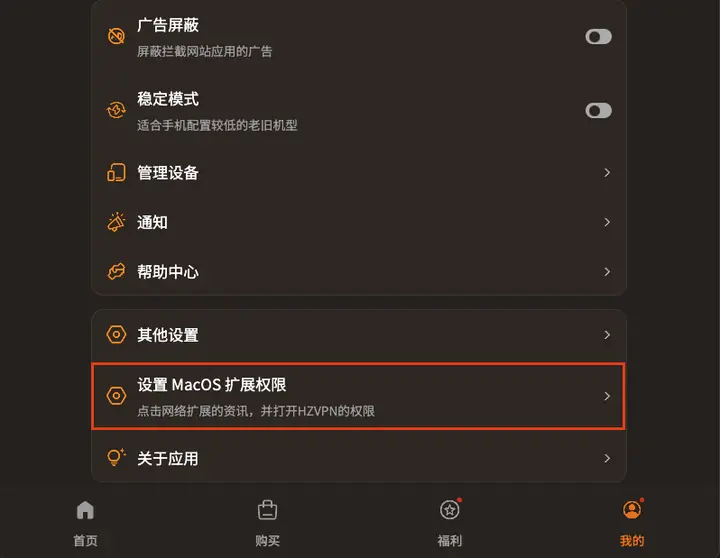
- Before using a MacOS VPN, make sure you have extended permissions enabled. Please go to"Login items and extensions"Make settings, or click the button within our app, and the system will automatically open the settings page for you.
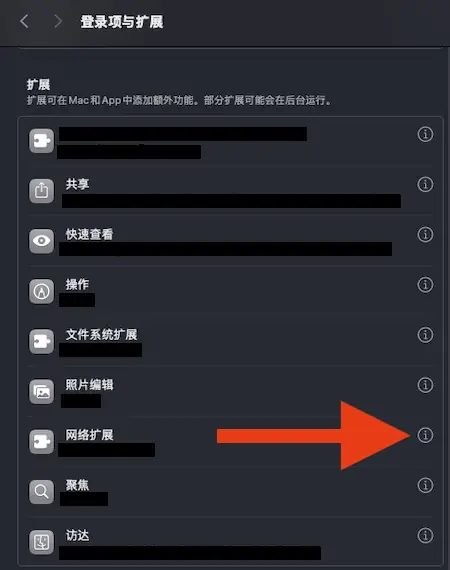
- exist"Login items and extensions", swipe down to"Extended"part, find"Network Expansion", then click next to"Information (ⓘ)"icon.
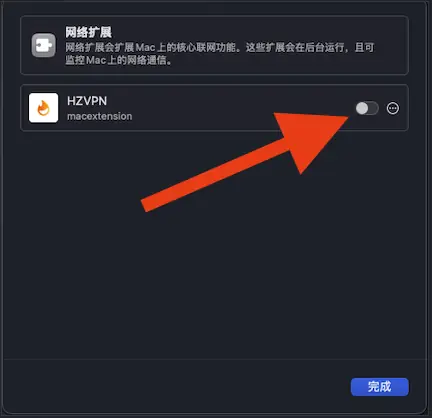
- turn upHZVPN, if the app extension is not enabled yet, please enable it and click on the lower right corner"Finish"。