Google Play VPN: For Downloading and Updating Apps
Setting up a new phone with dozens of apps, or updating maps and translation apps before a trip, all goes through Google Play. A download stuck on "Pending" with a frozen progress bar is often a network problem. This page covers only downloads, updates and purchases in the Play Store, and where HZVPN can help.
Download HZVPN
What a VPN does for Google Play
Play Store downloads and updates fetch install packages from Google's servers, and large games and apps can run to hundreds of megabytes or more.
When your local line keeps stalling downloads, HZVPN gives you another route to compare; on public networks, it also keeps others from seeing what you download.


The progress bar won't move
When a download is stuck, first check storage space and the network, then connect to an HZVPN location near you and try again, comparing with the VPN off.
Installing lots of apps on a new phone
Restoring dozens of apps at once is a big download. Do it on steady Wi-Fi and don't switch server locations midway, or downloads may break off.
Updating apps at the airport
Updating apps on public Wi-Fi, HZVPN encrypts the connection so others on the network can't see what you are downloading.
Download from a nearby location
Closer usually means a smoother route. In Singapore, try Singapore (24 servers); in Hong Kong, try Hong Kong (29).
Google Play and VPNs: three rules to know
These rules follow your Google account; a new IP doesn't change them.
"Not available in your country"
Some apps are only listed in the countries their developers choose. When you see that message, a VPN won't change the result; your Play Store country follows your account and payment profile, and is changed under Google's rules.
Gift cards are regional
Google Play gift cards can generally only be redeemed in the country where they were bought. Before buying a card abroad, or when you receive one from another country, check it works on your account.
Don't install apps from unknown sites
When an app isn't in the Play Store, downloading its install file from a third-party site is risky and may bring malware. Google Play Protect also warns about risky apps.
Google Play on different devices
Phones, tablets, managing apps from a computer, and family sharing each have something to watch.

Android phones
HZVPN supports Android 9+. Connect HZVPN first, then open the Play Store to download or update.

Android tablets
Big games are even larger on tablets. Check storage before downloading and use steady Wi-Fi if you can.

Managing apps from a computer
You can open the Play Store website in a desktop browser and install apps to a phone signed in to the same account. The HZVPN app on Windows and macOS encrypts browser traffic.

Family sharing
A Google Play family group can share some purchased content, as Google describes; that has nothing to do with a VPN.
Get started in 3 steps

Sign up and download
Create an HZVPN account on our website, then download the app for Android, iOS, Windows, macOS or Linux.

Pick a server location
Choose one of 43 server locations in the app and tap connect. If it doesn't feel right, switch to another any time.

Open the app you want to use
Open Google Play and update a small app to check downloads work; if it sits on "Pending", switch to a nearby location or compare with HZVPN off.
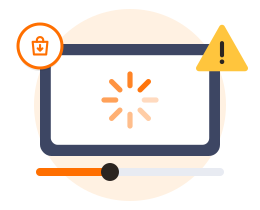
Download stuck on "Pending": check in this order
1. Check your phone's storage. If space is short, the download will wait forever, whatever the network.
2. See whether other apps are queued for updates in the Play Store. You can pause auto-updates so the one you need goes first.
3. Try once on your local network with HZVPN off; if that doesn't move either, clear the Play Store's cache and reopen it.
4. If it only sticks with the VPN on, switch to a nearby HZVPN location. When downloading big games, avoid switching networks halfway.
HZVPN features that help with Google Play
We only list features HZVPN actually has today. If a feature isn't listed here, please don't assume it exists.
43 server locations, 265 servers
265 servers in 43 locations, so you can download from one near you.
Switch locations any time, no limit
When a download sticks, switch locations and try again, as often as you like.
One account, several devices
Your phone, tablet and computer can all sign in with the same HZVPN account. Devices online at the same time: 3 on VIP, 5 on SVIP (the app shows the current limit).
Free, VIP and SVIP tiers
Free routes work as soon as you sign up, currently in United States, Japan, Hong Kong, Singapore, Germany, Canada, France, Thailand and United Kingdom. Upgrade to VIP or SVIP when you need more locations.

Frequently asked questions
My Google Play download keeps saying "Pending". Will a VPN help?
If the cause is your local line, another route may help. Check storage and queued updates first, then compare with HZVPN on and off.
The Play Store says an app isn't available in my country. Can I get it with a VPN?
No. The developer decides where an app is listed, and your Play Store country follows your account and payment profile; a VPN doesn't change that.
Can I use a Google Play gift card bought abroad?
Gift cards can generally only be redeemed in the country where they were bought; check whether it works on your account first.
Can I download apps that aren't in the Play Store from other sites?
We don't recommend it. Install files from unknown sources may contain malware.
Does updating apps with HZVPN on use more data?
A little. VPN encryption adds a small amount of overhead, so keep an eye on it when updating big apps over mobile data.
Ready when you are
Sign up for an HZVPN account to use the free servers. Upgrade later if you need more server locations or more devices online at once.
Server numbers come from our server list (43 locations, 265 servers). They change with maintenance; the app always shows the current list.