Support Center
FAQ
Support Center
How to change password
Step 1: Enter the personal account page
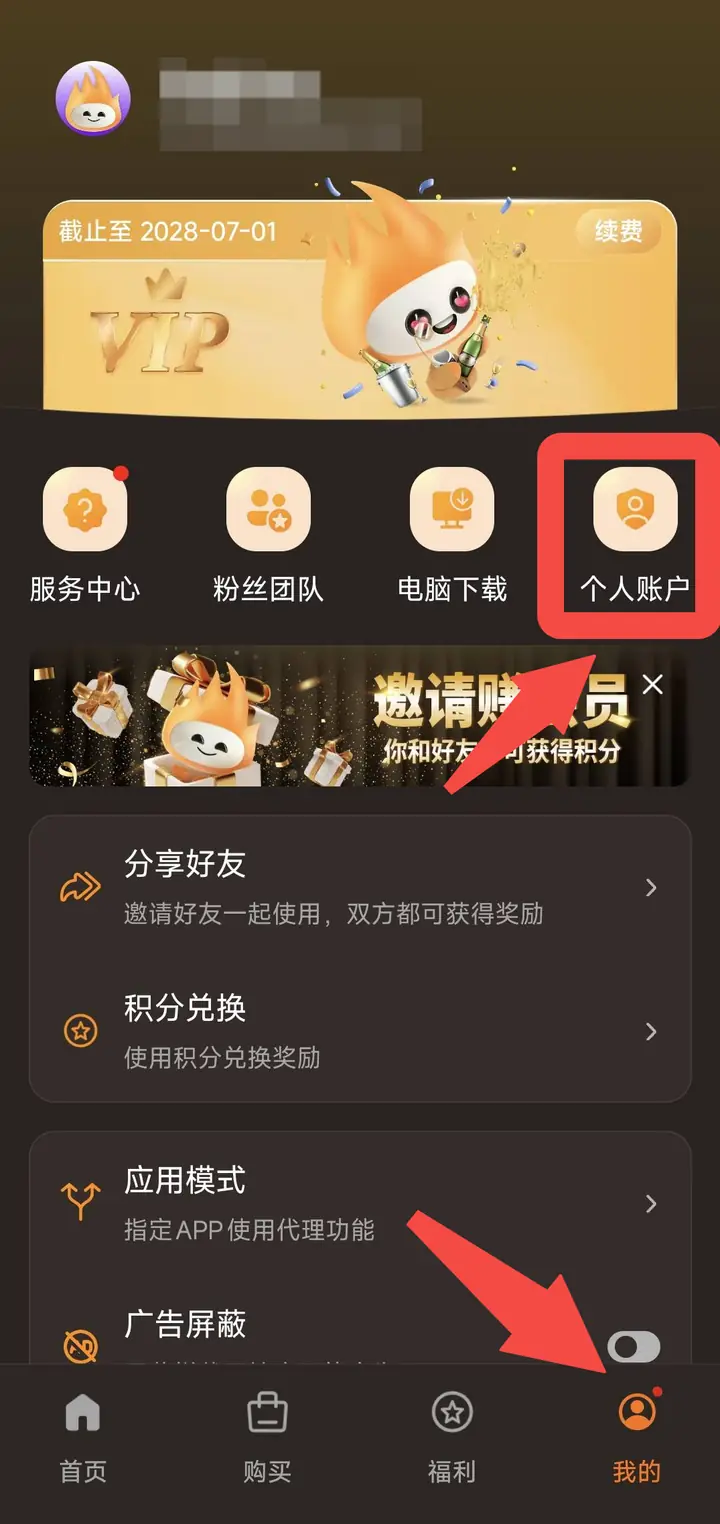
Open the App, click "My" on the bottom navigation bar, and then click the "Personal Account" entry in the icon area in the upper right corner.
Step 2: Find the password change option
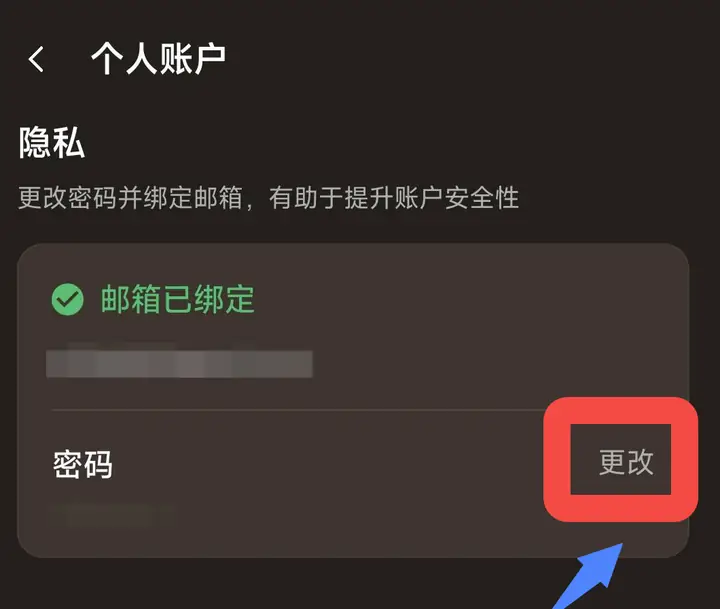 Under the "Privacy" section of the "Personal Account" page, you will see the "Password" column and click the "Change" button on the right.
Step 3: Fill in the password information
After entering the "Change Password" page, fill in the following:- Current Password: The password you currently use to log in
- New Password: the new password you want to set
- Confirm new password: Enter the new password again to confirm it is correct
Step 4: Complete the changes
After the system prompts "Password changed successfully", click "OK" to complete the password change.⚠️ Important reminder
- All devices will be automatically logged out: After the password is changed successfully, all logged-in devices under your account (including mobile phones, computers, etc.) will be forced to log out and you will need to log in again using the new password. Please make sure that after changing your password, you promptly log in again with the new password on another device.
- Please remember your new password: It is recommended to keep the new password properly (such as using a password management tool) to avoid forgetting it and being unable to log in to the account.
- What to do if you forget your current password: If you don't remember your current password, you can click the "Forgot your password?" link in the upper right corner of the page to reset your password through the bound email address.
- Account security suggestions: Regularly changing your password and binding your email address will help improve account security and prevent account theft.